Blue-green balance
Daily leans into cool whites, blues and foliage without the bright saturation of the digital profiles.
CAMERA 02 / FILM / PORTRAIT / DAILY
A little cooler. A little quieter. Film-inspired color for the people, places and ordinary moments you want to keep.
Free to try · No signup · Photos stay in your browser
01 / BEFORE & AFTER
The same image, processed with the GRF S web photo renderer. Choose a mode, then move the slider to reveal its effect.
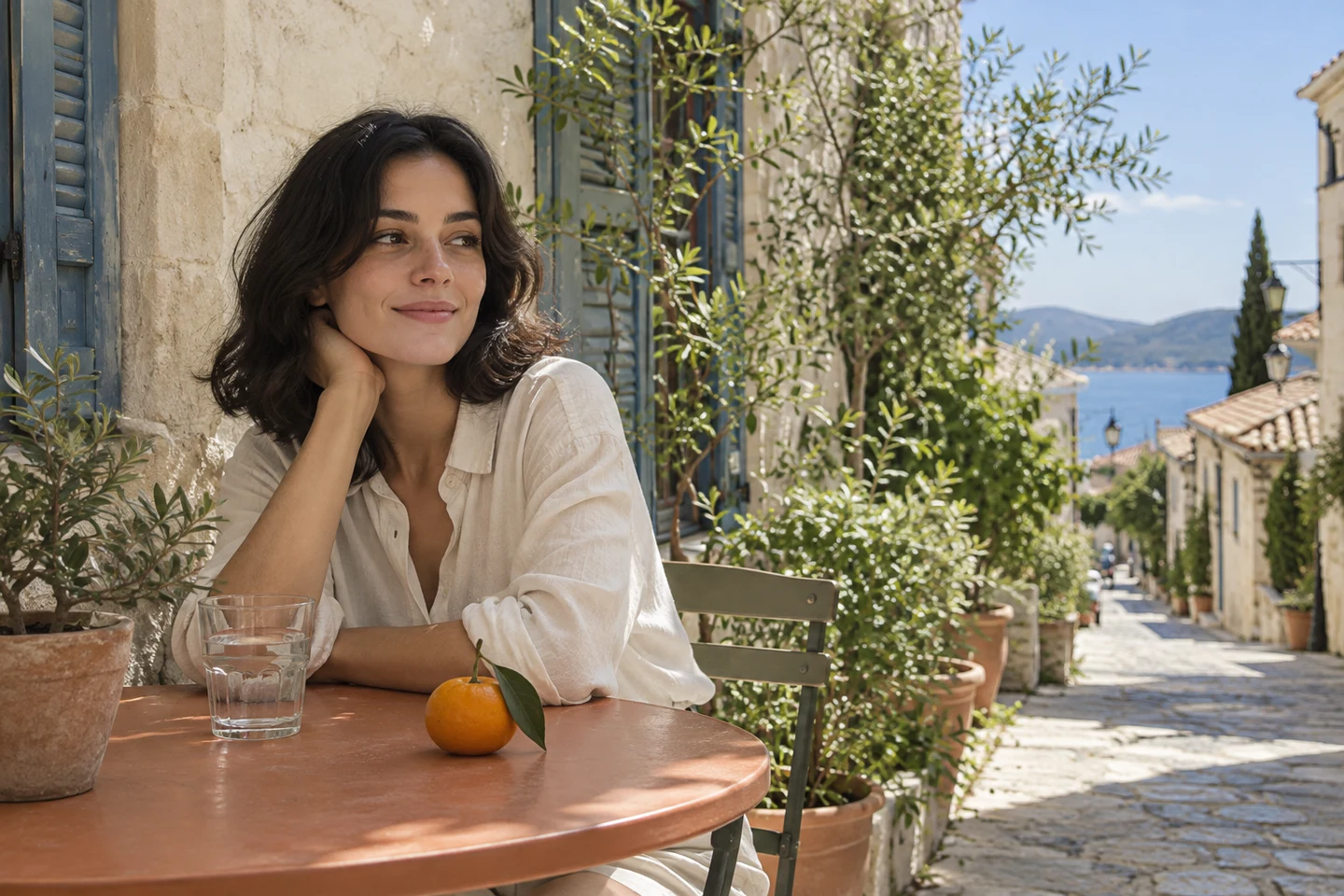
 Daily / CoolSOURCE
Selected: Daily / Cool
02 / THE CHARACTER
Daily leans into cool whites, blues and foliage without the bright saturation of the digital profiles.
Warm changes the color response, giving skin and cream tones a more golden, slightly green cast.
Subtle grain and shaded edges add texture. Start at full intensity, then ease it back if skin looks too heavy.
03 / FIND YOUR MODE
Each mode has a different color response. Open either one directly, then adjust its intensity in Studio.
Cool blue-green color, restrained saturation and gently shaded edges. Start here for window light, greenery and everyday portraits.
Use Daily / CoolA yellow-green shift with a warmer balance and a little more color. Try it with indoor light, evening portraits and direct-flash source photos.
Use Warm04 / FROM THE WEB CAMERA
One source, two interpretations. These are the actual web-rendered looks on the demonstration image above.


05 / MAKE IT YOURS
Window light and open shade let the color shift show without losing skin detail.
Use Daily for cool greens and blues. Choose Warm when the scene needs a more golden balance.
Try the camera profile before adding glow, a frame or a date stamp. Reduce intensity if the cast overwhelms the image.
06 / GOOD TO KNOW
Both use the GRF S base profile. Daily shifts the balance toward blue and green with lower saturation; Warm shifts it toward yellow-green warmth with slightly more saturation.
Yes. Every main Try button carries your selected camera and mode into Studio. The mode cards also include direct links to their individual looks.
No. The comparisons show this independent website’s own photo renderer. The source is an AI-generated demonstration image; it is not a sample captured with the mobile app.
Supported photo edits are processed locally in your browser. Import a JPG, PNG or WebP to begin. Live camera access requires HTTPS and your permission.
KEEP EXPLORING