Retro starting look
A balanced throwback finish. Everyday photos that need a nostalgic lift.
A balanced throwback finish.
Upload a photo, pick a camera mood and export a new version in your browser.
This export is processed in your browser. No image is sent to the server. The original file is not changed.
A balanced throwback finish. Everyday photos that need a nostalgic lift.
Change effect intensity, grain and vignette independently; compare with the original before saving.
Keep Original or choose 1:1, 4:5 or 9:16. Add an LCD or Instant frame when it suits the photo.
Enter your own text and turn the stamp on or off. The stamp is decorative, not evidence of when a photo was taken.
Import a JPG, PNG or WebP, then download a JPG or PNG. Inspect the saved file before sharing.
No registration is required. Optional server export uploads the image and can differ from the browser preview.
Retro Camera is a single-preset workflow for a warm throwback finish. The initial Retro treatment changes color, contrast and brightness without requiring you to choose a hardware model. It is useful for making an everyday photograph feel less contemporary while retaining recognizable subjects.
 Original
 Retro example
Keep the edit modest when the original already has warm indoor lighting. Too much warmth can flatten the separation between a face and a wooden or orange background. Compare the result, reduce intensity if needed, then decide whether a stamp or frame belongs in the finished photograph.
Try a café portrait near a window. Use a light Retro treatment, leave the frame on None and add a short date only after judging skin color.
Retro Camera uses the same Retro preset offered in the broader Photo Editor. It is a focused guide, not an additional camera engine.
Follow these steps with your own photo. The illustrations show the controls schematically; the rendered examples use this tool’s preset.
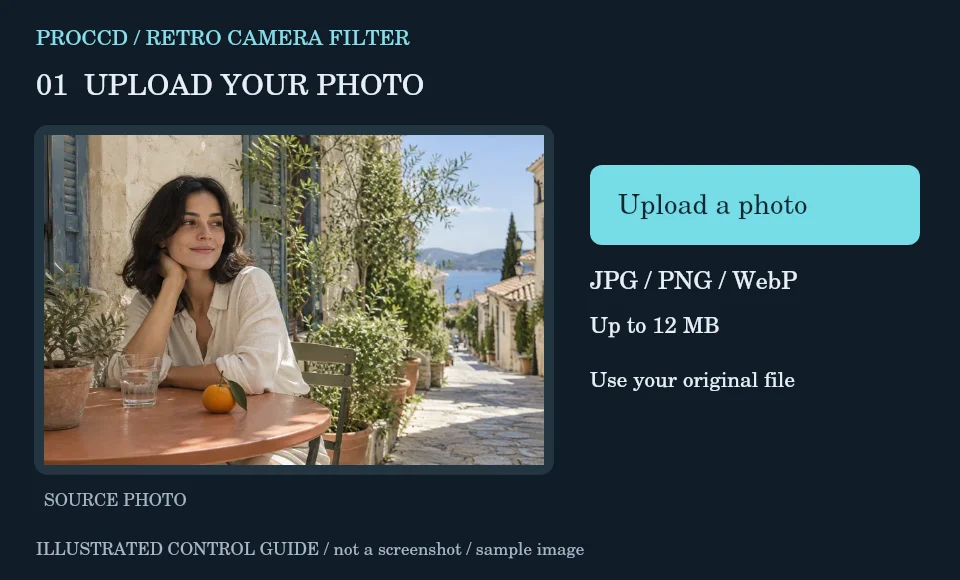
Upload an everyday photograph whose subject is already clearly exposed. Start with an image that is not heavily filtered.
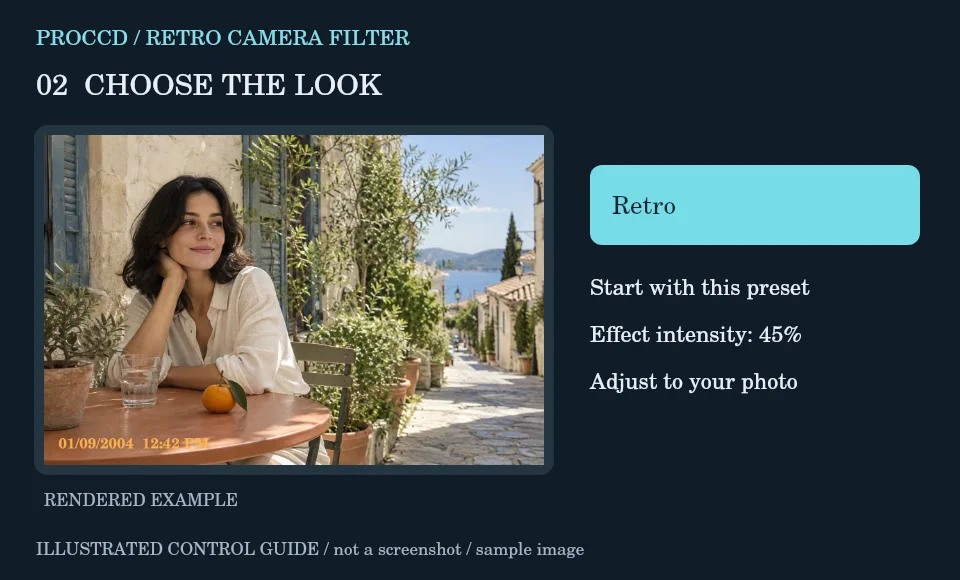
Keep Retro as the starting treatment. Change intensity gradually while checking skin and neutral surfaces.
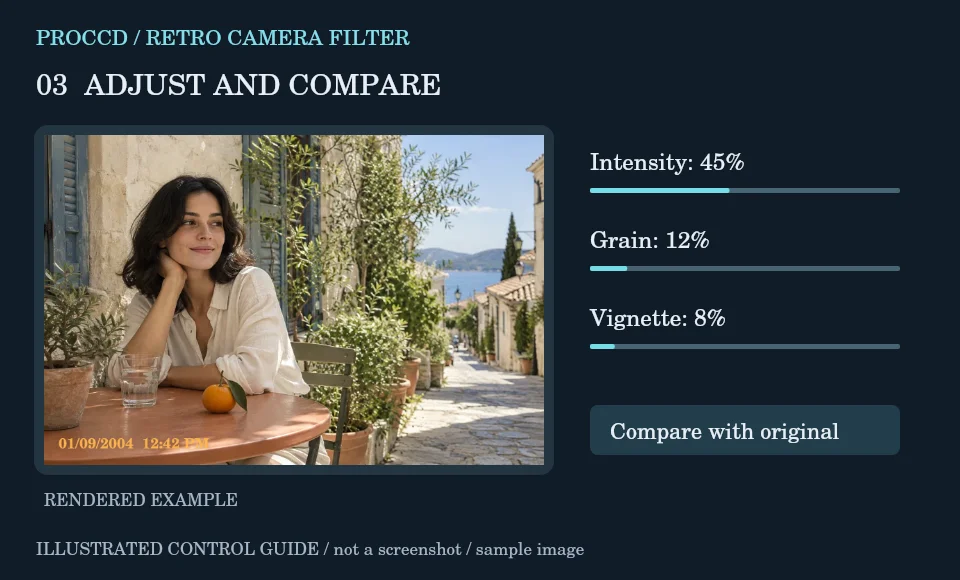
Use Vignette to direct attention and Grain for surface texture. Choose None, LCD or Instant for the frame according to the intended use.
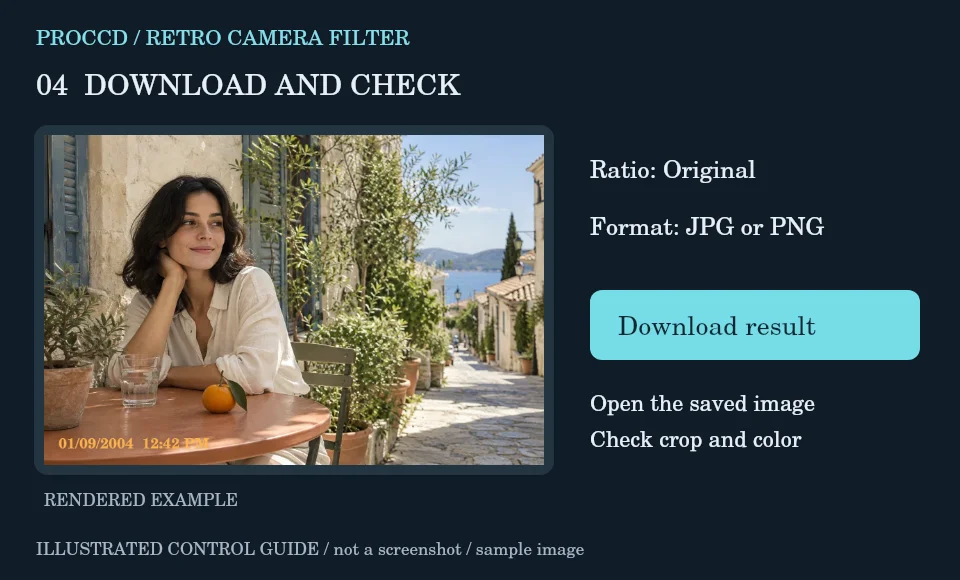
Review the crop and editable stamp text. Download a new JPG or PNG; editing does not overwrite the uploaded original.
Explore a related finish, then return to this editor to compare your choice.
No. This page starts the shared browser editor with its Retro preset and provides a focused editing workflow.
Choose Original under Output ratio. Other ratio choices use a centered crop and can remove parts of the scene.
The tool-page editor accepts JPG, PNG and WebP up to 12 MB, with a maximum side of 8000 pixels and a 25 MP limit. Opt-in server processing has a 12 MP client limit and also depends on the server configuration.
The default export is processed in your browser. Selecting Use server processing for this export uploads your image when you download. The server uses a different renderer, so its result may differ from the browser preview.