Film starting look
Soft grain and faded highlights. Travel, portraits and muted editorial color.
Grain, faded color and analog character.
Upload a photo, pick a camera mood and export a new version in your browser.
This export is processed in your browser. No image is sent to the server. The original file is not changed.
Soft grain and faded highlights. Travel, portraits and muted editorial color.
Change effect intensity, grain and vignette independently; compare with the original before saving.
Keep Original or choose 1:1, 4:5 or 9:16. Add an LCD or Instant frame when it suits the photo.
Enter your own text and turn the stamp on or off. The stamp is decorative, not evidence of when a photo was taken.
Import a JPG, PNG or WebP, then download a JPG or PNG. Inspect the saved file before sharing.
No registration is required. Optional server export uploads the image and can differ from the browser preview.
Film applies a warm, restrained color grade to a still photograph. It is a convenient starting point for portraits, travel scenes and still life where you want less aggressive electronic color. The preset is a creative interpretation, not a film-stock profile calibrated against a physical negative.
 Original
 Film example
Texture is controlled separately with Grain. Start with color and intensity first, then increase texture while looking at smooth areas such as a wall or sky. Excess grain can distract from fine facial or fabric detail, especially after a social platform resizes the download.
Use a daylight portrait with a plain background. Choose a gentle Film intensity, add a little Grain and check the face at the size you intend to share.
This tool does not scan negatives, model development chemistry or guarantee a match to a named film stock.
Follow these steps with your own photo. The illustrations show the controls schematically; the rendered examples use this tool’s preset.
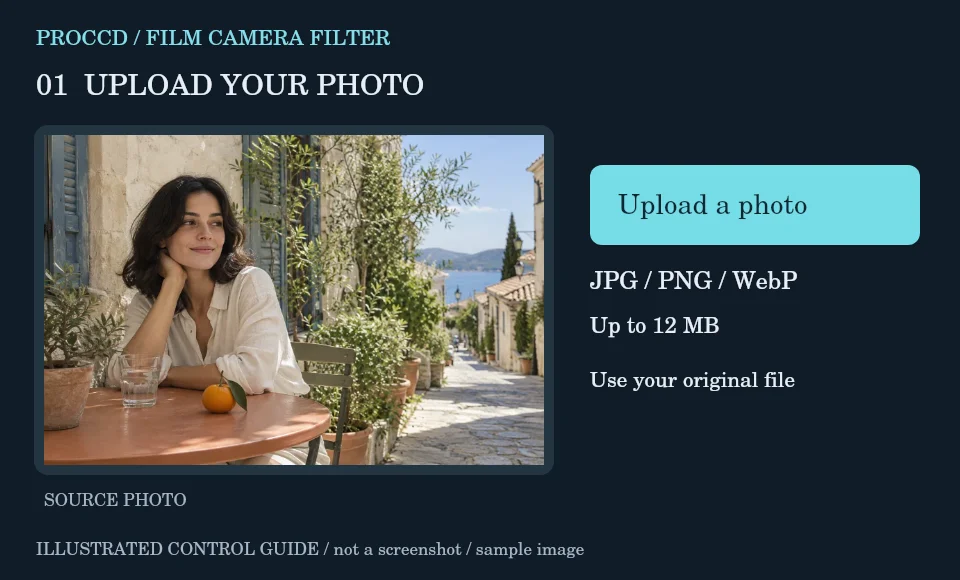
Upload a naturally lit portrait, travel photograph or still life with visible midtones.
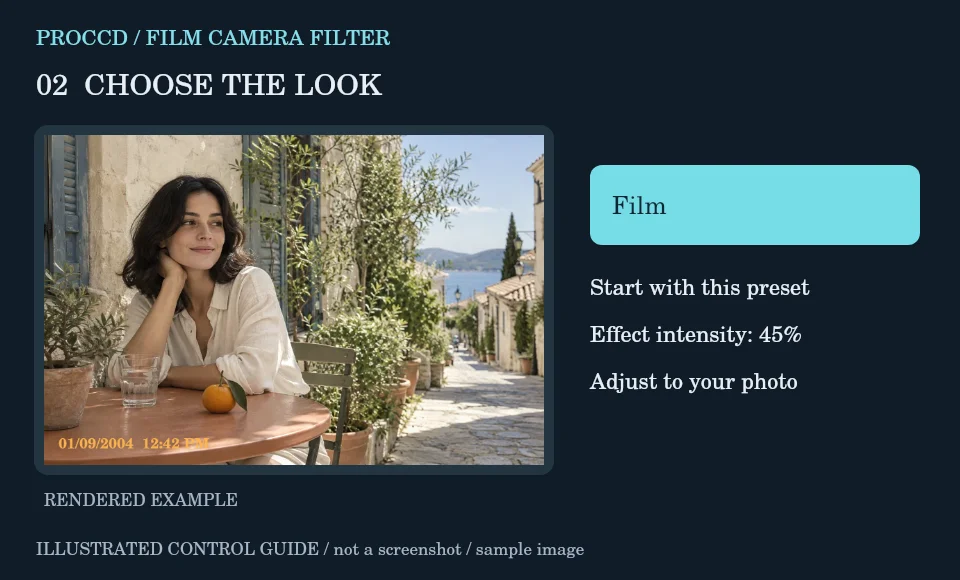
Keep Film as the active preset and adjust intensity before adding texture. Compare skin and pale objects with the original.
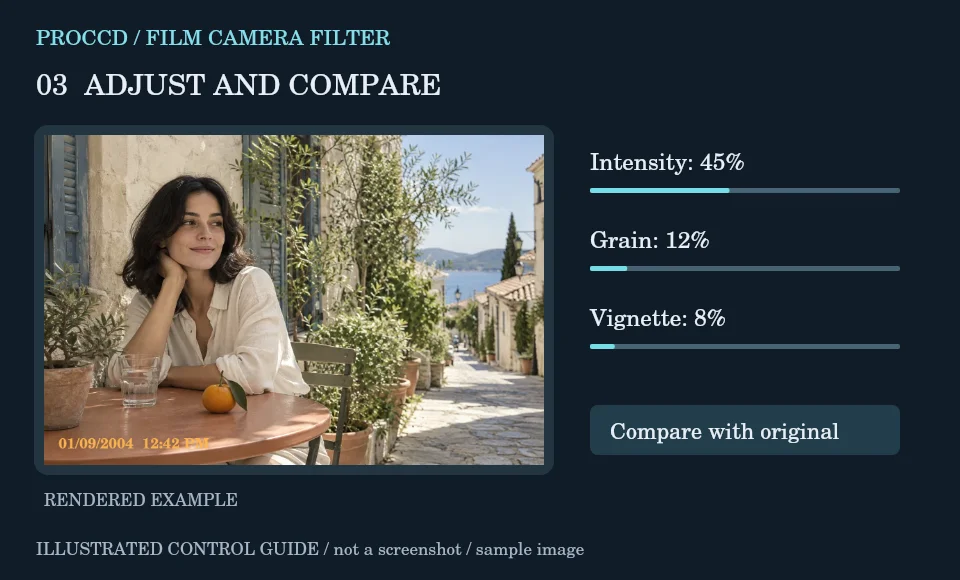
Increase the Grain slider a little at a time. Use Vignette sparingly so the edges do not hide important details.
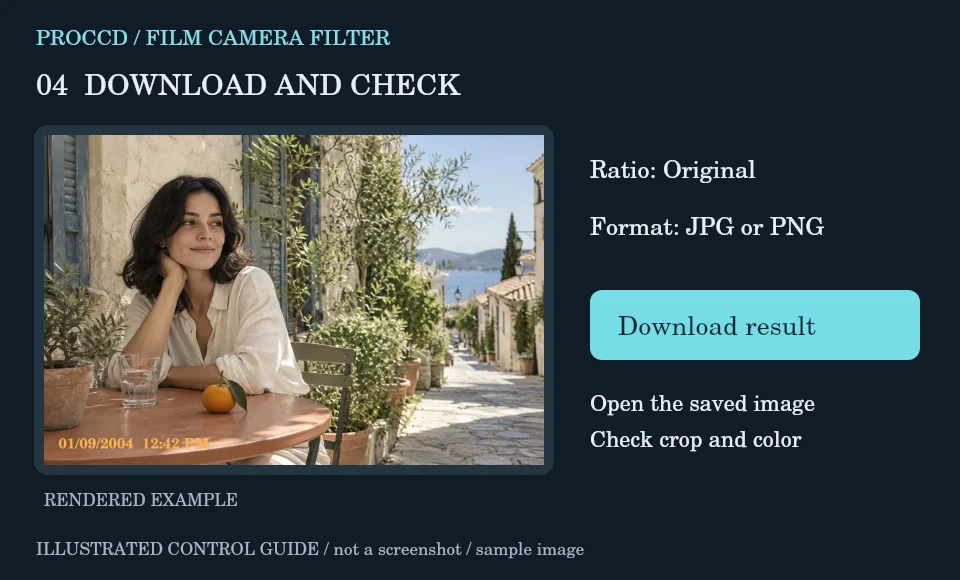
Choose the output ratio and format. Download, open the saved image and check the grain at the intended viewing size.
Explore a related finish, then return to this editor to compare your choice.
Yes. The Grain slider changes an added texture treatment independently of the selected color preset.
No. It is a general film-inspired look; it is not a calibrated simulation of a named stock or development process.
The tool-page editor accepts JPG, PNG and WebP up to 12 MB, with a maximum side of 8000 pixels and a 25 MP limit. Opt-in server processing has a 12 MP client limit and also depends on the server configuration.
The default export is processed in your browser. Selecting Use server processing for this export uploads your image when you download. The server uses a different renderer, so its result may differ from the browser preview.